Craven-Pamlico Regional Library Home

Craven-Pamlico Regional Library Home

 
     Advance Search

Account FAQs

Our most asked question: What is my PIN? Answer: The last four digits of your phone number

Logging in to your account

To log in to your library account:

  • Click on “Log in” in the upper right hand corner of the catalog screen

How to log in to your account

  • Enter your library card number in the “Library Card Number” dialog box
  • Enter the last four digits of your telephone number in the “PIN” dialog box

enter your login information

  • Click on the blue “Log In” button
  • To view your account information, click on your name at the upper right corner of the screen

View your login information

Remember to log out if you are using a shared computer.

You can also create an EZ Login to make up your own username and password.


What is my account PIN?

Your PIN is the last four numbers of the phone number you used to register for your libray card.

Placing an item on hold

To place an item on hold:

  • Find the item you would like to place a hold on by searching in the catalog. (searching tips)
  • Once you’ve found an item you’d like, click on the orange box marked “Place Hold” near the cover image.


How to place a hold

  • If not already logged-in to your account, you will be prompted to do so. (log-in instructions)
  • Notice the pick-up location, make changes as needed by clicking the drop-down arrow

Select Branch to pick up hold

  • For most holds, leave “I want the first available copy” selected.
  • Click on the blue Submit Hold button.
  • A message at the top of the page will confirm that your hold has been placed.


To view the holds that you’ve placed:

  • Log in to your account (Log In Instructions )
  • Click on the drop down arrow by your name
  • Click on Holds under Account Activity

See the holds you have requested

This page shows a lot of information about the items you have on hold, such as:

  • Arrived Holds, which are waiting to be picked up
  • Position in Queue, which denotes your place on the wait list for the item
  • Pickup Location, which is the library the item will be sent to for you
  • Suspend Until, to set a date range for the hold
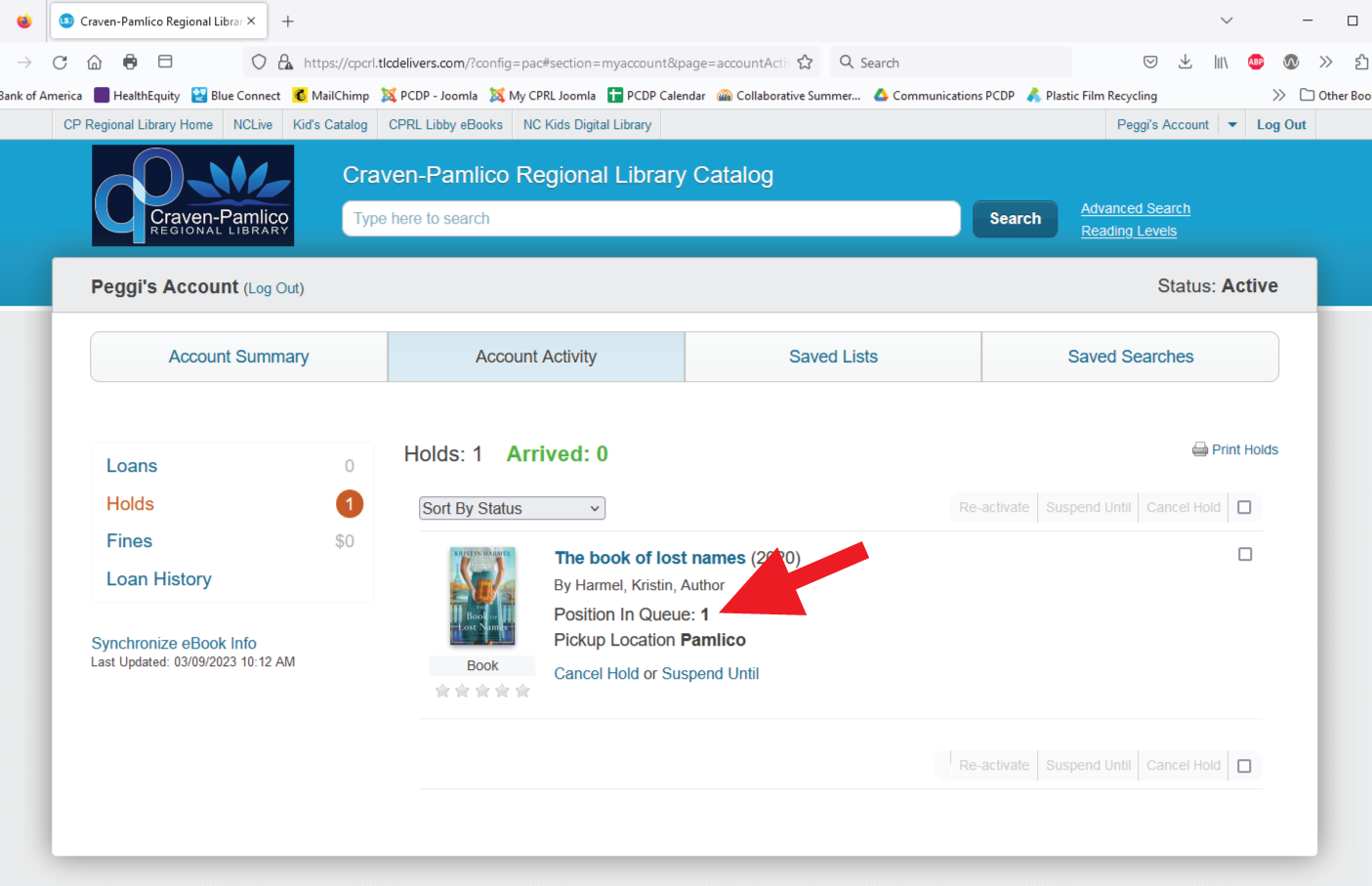
See your postion in hold queue

Once an item arrives for you, you will have one week to pick it up.

Not receiving email notifications about holds? Add This email address is being protected from spambots. You need JavaScript enabled to view it. to your email contacts.

To cancel a hold that you’ve placed:

  • Click the check-box to the right of the title of the item you’d like to cancel
  • Click the blue “Cancel Hold” link at the top or bottom of the list of holds
  • Your hold will immediately be removed.
Renewing loans

To renew materials in your account:

  • Log in to your account (log-in instructions)
  • Click on the drop down arrow by your name.
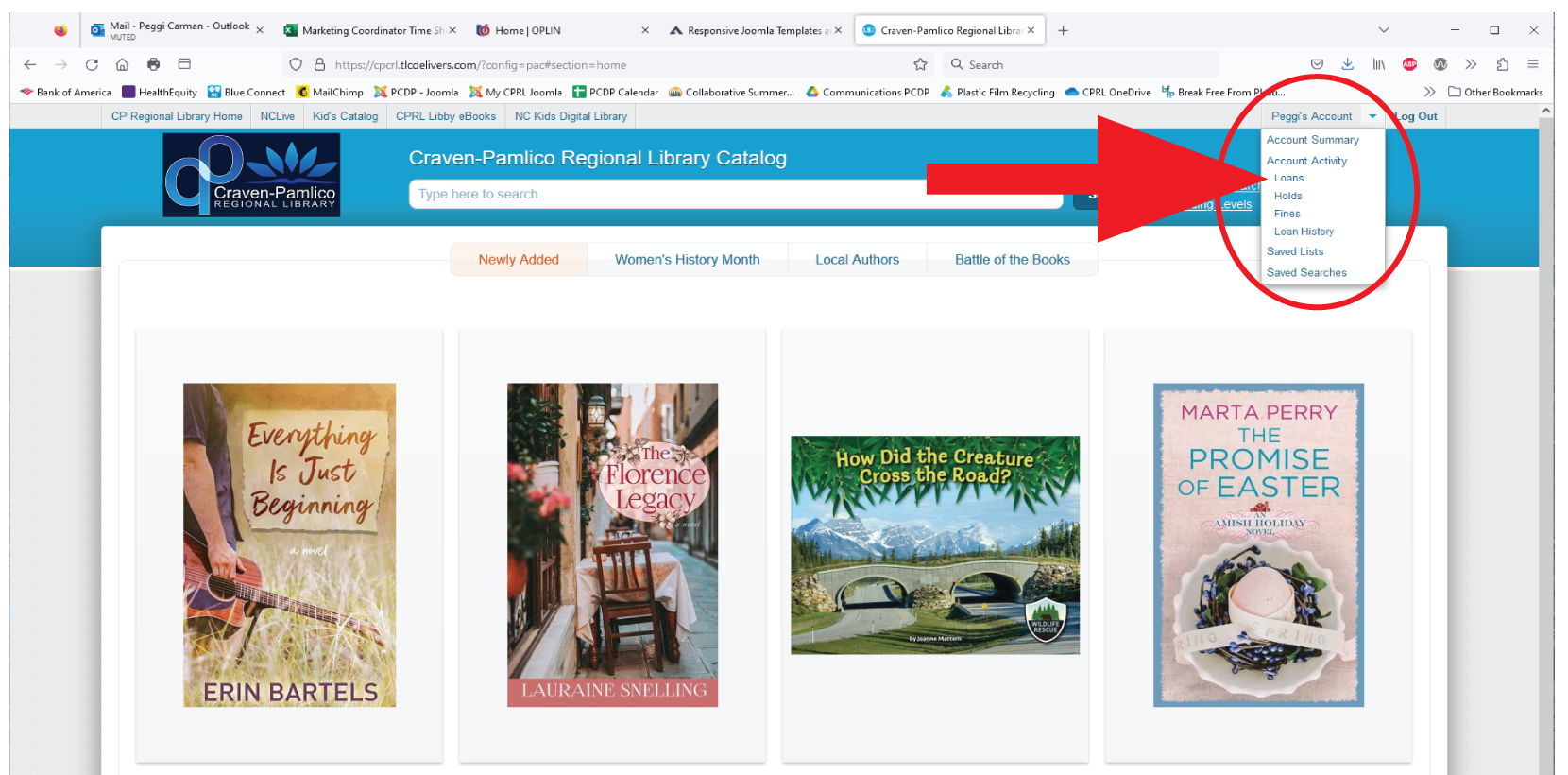
How to renew your materials

  • Click on Loans under Account Activity
  • To renew a single items, click on the orange "Renew Loan" button under the title
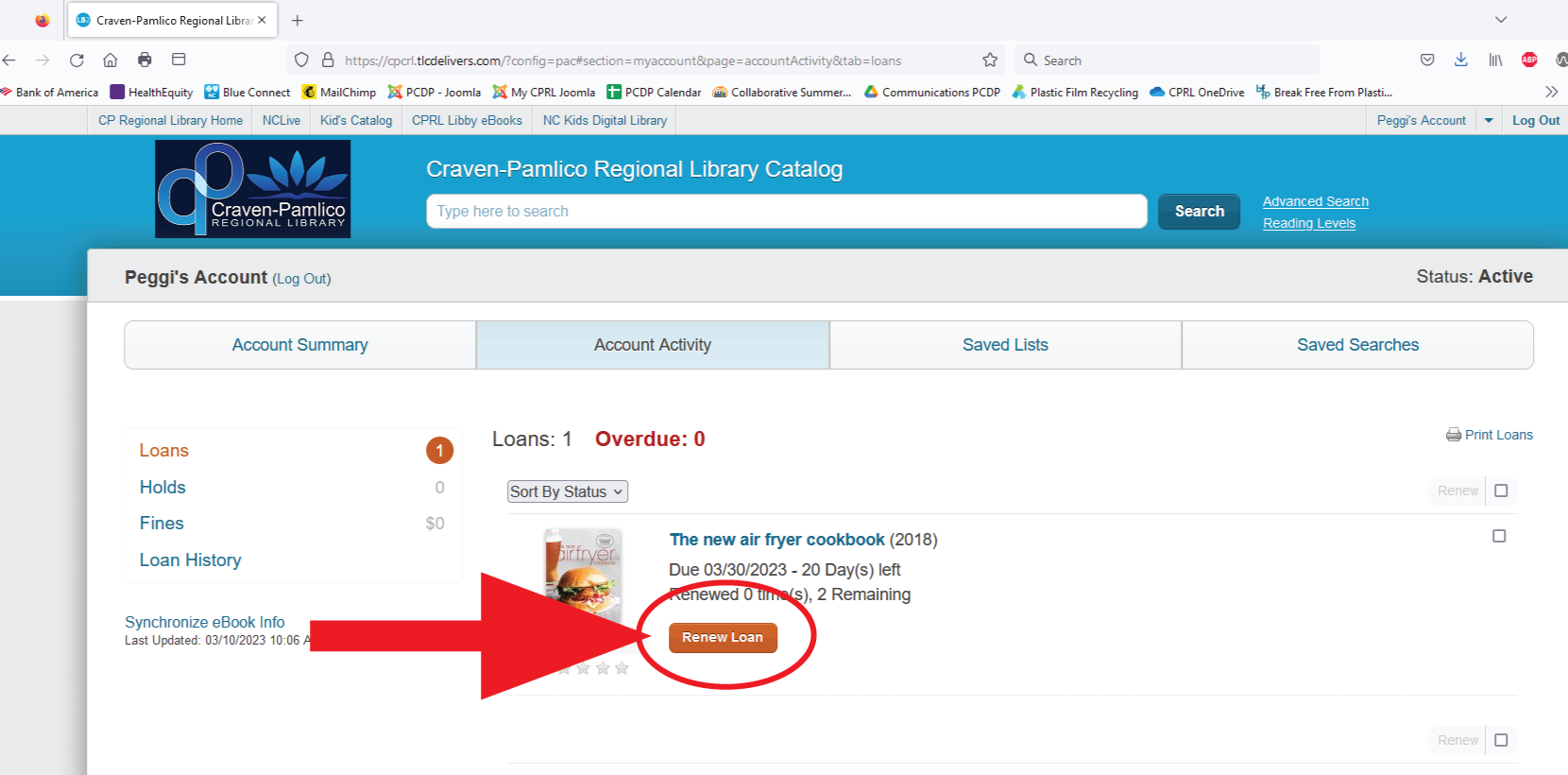
Click on renew button

  • To renew multiple items, select the radio buttons next to each title
  • Click the blue Renew link at the top of the list of items
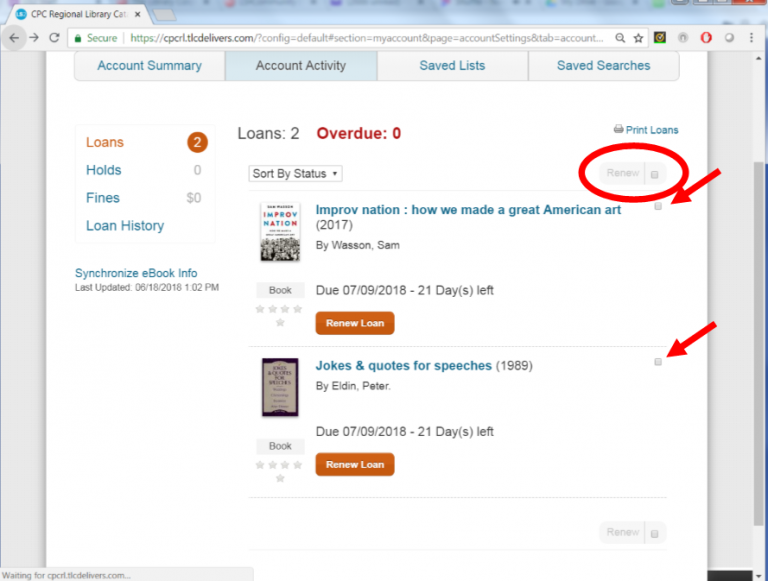
Renew all materials checked out

  • To renew all items, select the radio button next to the blue Renew link at the top of the list of items
  • Click the blue Renew link at the top of the list of items.

Please note that if your items do not renew successfully, there may be loan policies restricting the renewal. Contact your library assistance.

You may also renew loans by calling or stopping by your local library.

Using self-checkout machines

Self-Checkout Machines!*

This convenient option makes checking out books and other items a breeze.

Here’s how it works:
1. Swipe your library card.
2. Enter your PIN (just the last four digits of your phone number).
3. Scan your items.

The display will show your due date and offer the option to print your own receipt. Enjoy the ease of self-checkout!

*This project of self-checkout  kiosks was supported by grant funds from the Institute of Museum and Library Services under the provisions of the federal Library Services and Technology Act (LSTA) as administered by the State Library of North Carolina, a division of the Department of Natural and Cultural Resources (IMLS grant number NC-21-319).

Searching the catalog

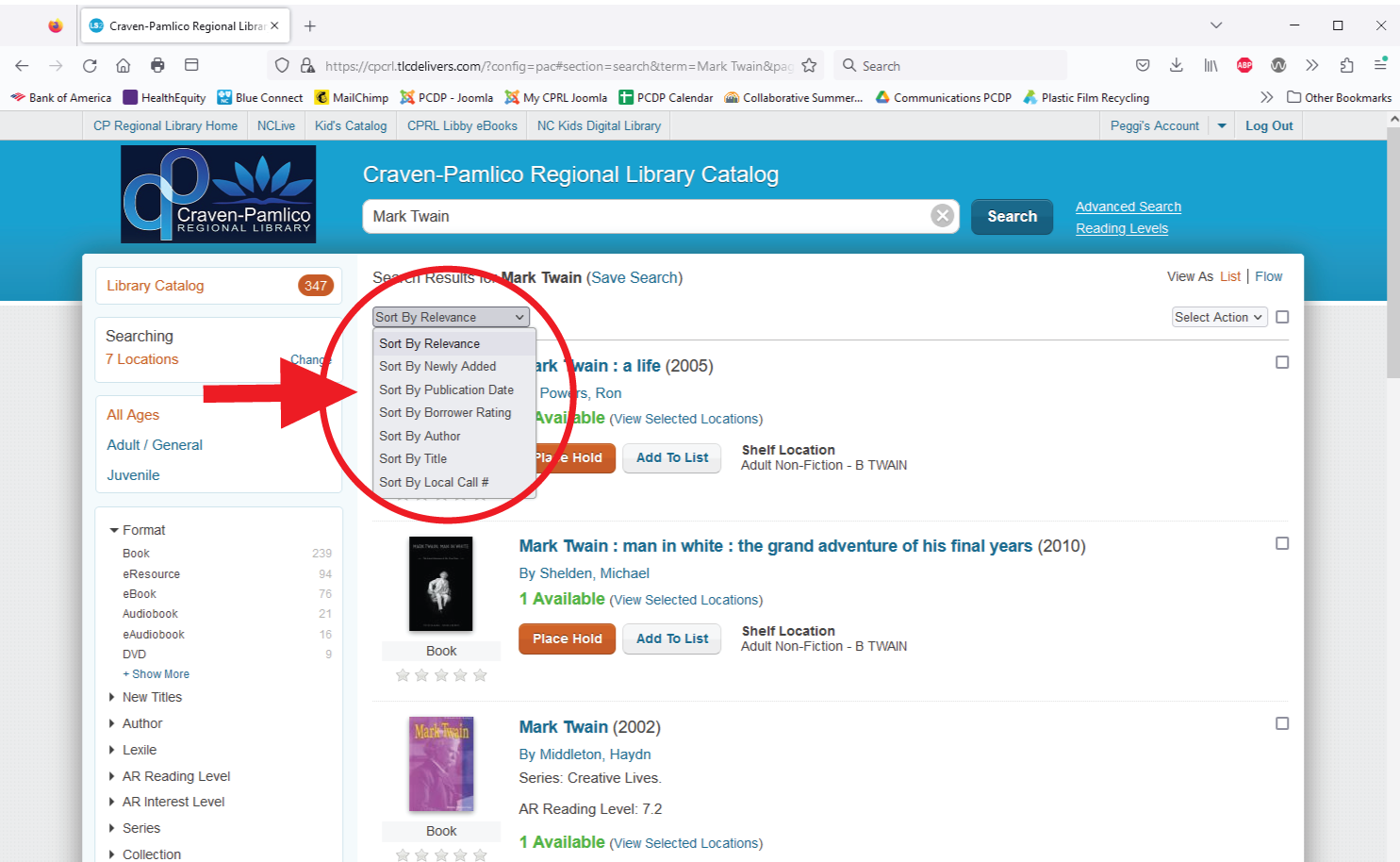
How to find the newest book by an author:

  • Type the authors name into the search box and click Search
  • Click the drop-down arrow next to “Sort by Relevance”
  • Choose “Sort by Publication Date”

Show search tips

  • Now the author’s most recent work will appear at the top of the page

How to find the audio version of a book

  • Type in the title of the book into the search box and click Search
  • Look under “Format” at the left-hand side of the screen
  • Choose “Audiobook”


  • Now only items in audiobook format appear

How to find DVDs

  • Type in a subject or title in the search box and click Search
  • Look under “Format” at the left-hand side of the screen
  • Choose “Video Recording” or “DVD”

  • Now only items listed as video recording or DVD format appear

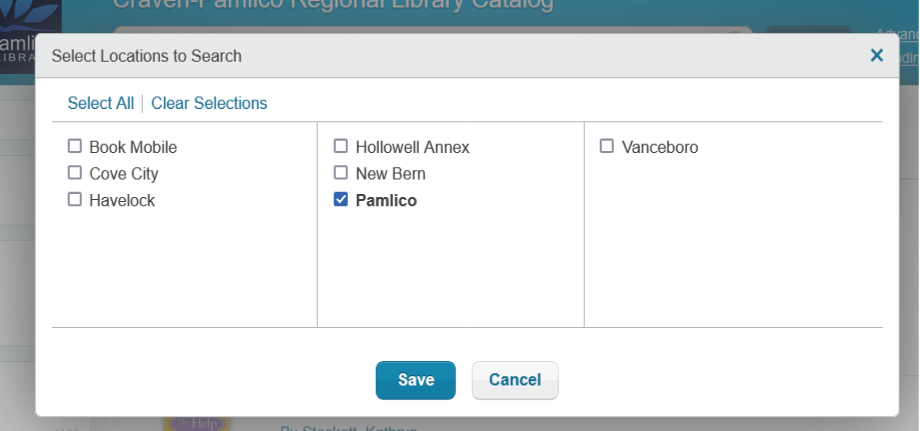
How to search only your library’s collection

  • Type in an author, subject or title into the search box and click Search
  • On the left-hand side of the screen, find “All Locations”
  • Click “Change”
  • Choose the library whose collection you’d like to search
  • Click “Save”

Search only selected branch locations

  • Only titles from the selected location will appear


Searching the catalog by reading level

Our library catalog has Lexile and Accelerated Reader integration. Find books by a specific reading level range by:

  • Click “Reading Levels” at the top right-hand of the catalog screen
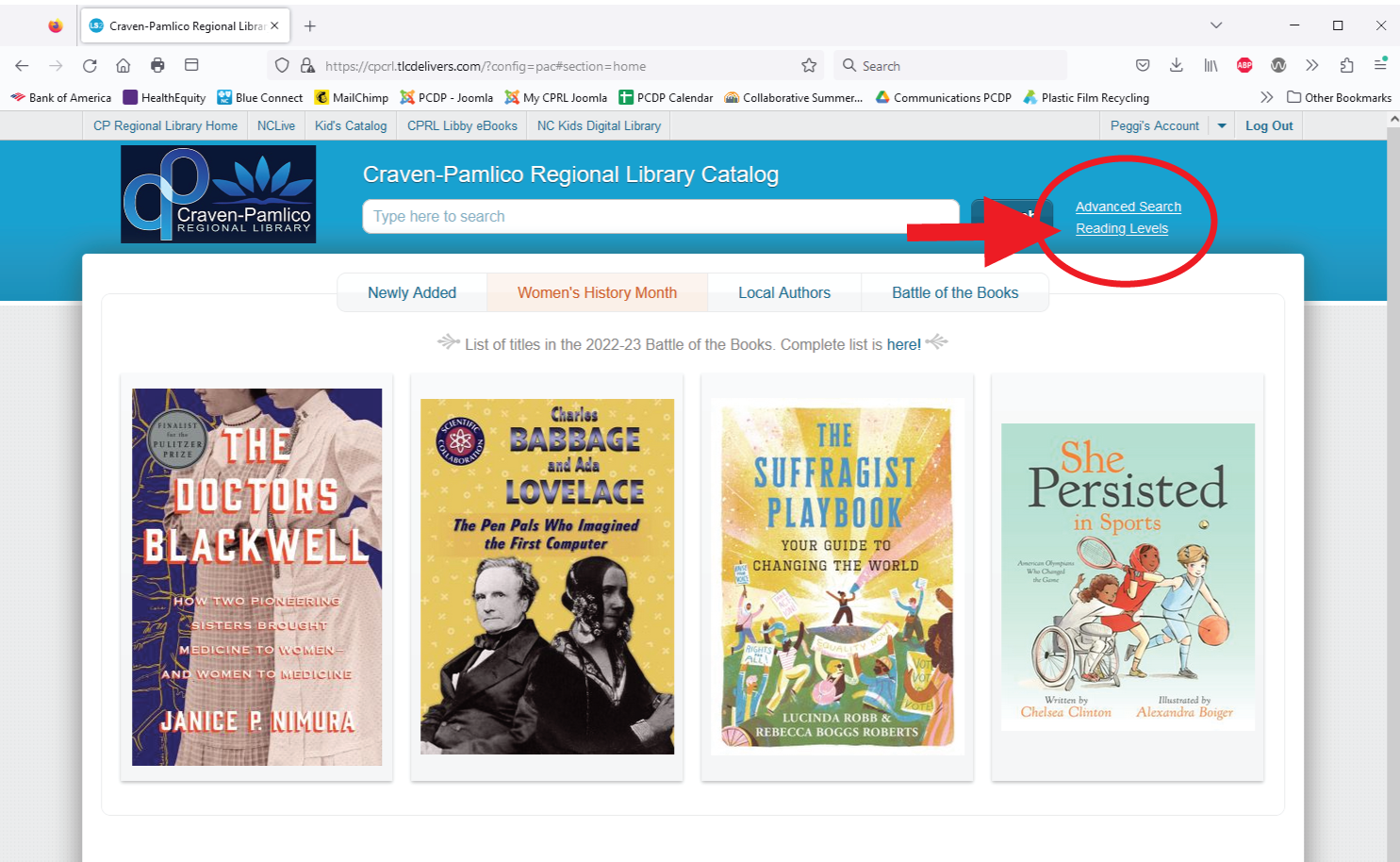
Search materials by reading level

  • Type in a Lexile measure, AR Reading or AR Interest level
  • When you enter a Lexile measure or AR reading level, the range is automatically filled in
  • Type in a subject or author and click Reading Level Search
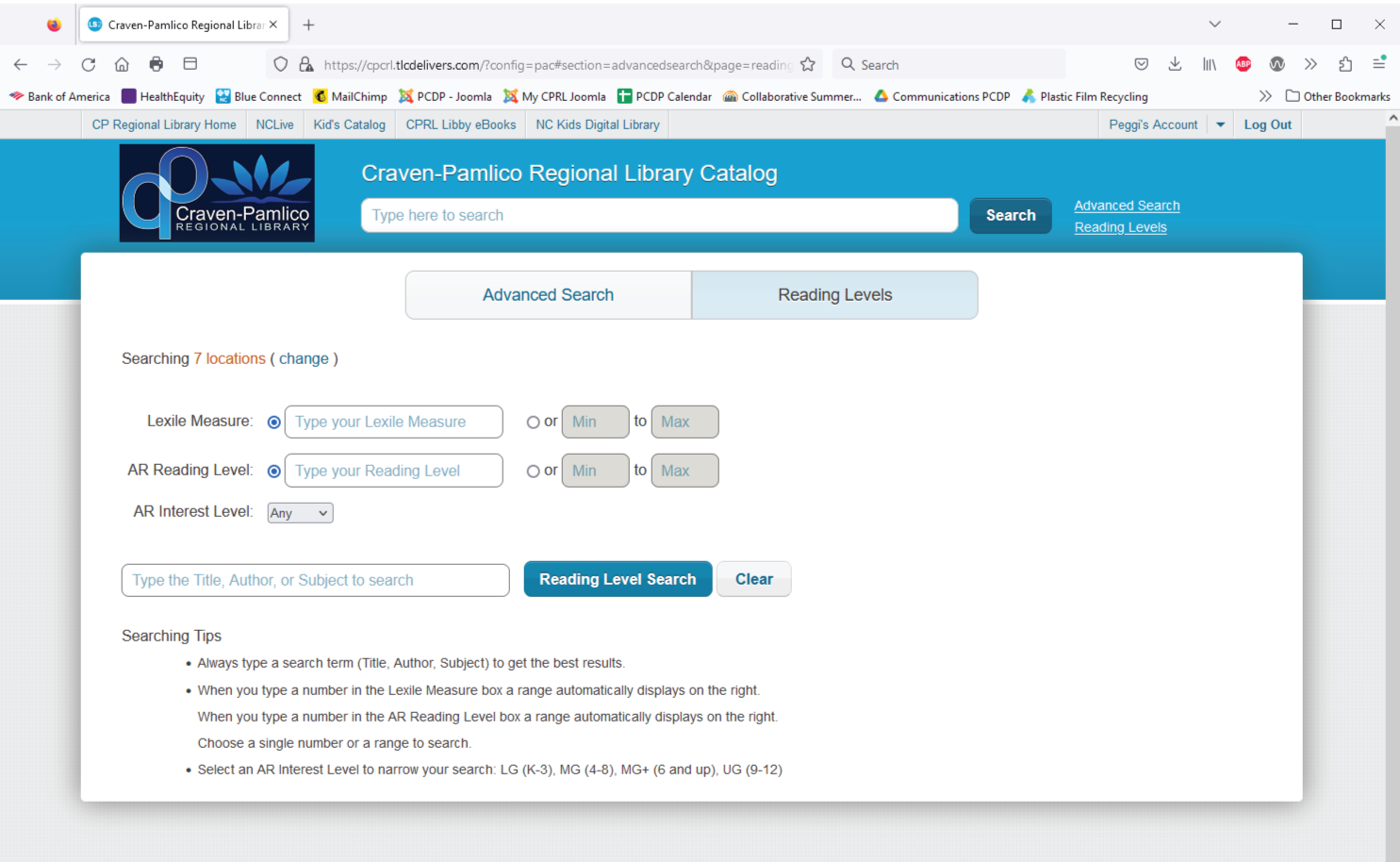
Advance search by reading levels

Learn more about our catalog’s Lexile and AR level searching here.

Using Libby for e-books and audiobooks

E-book and Audiobook Help

Our E-Book and Audiobook titles are provided by the app called Libby. All you need to get started is an internet connection, a library card, and these steps:

  1. Install the Libby app. Go to the app store on your Android or iOS (iPhone/iPad/iPod touch) device. Or, visit Libby's website in your Chome, Firefox, Safari, or Edge browser.
  2. Find your library. In Libby, follow the prompts to find your library and sign in with a valid library card.
  3. Borrow. Browse your library's collection and borrow a title. Your account must also be in good standing (with no fines or blocks).
  4. Your Shelf. Borrowed titles appear on your Shelf and download to the app automatically when you're on Wi-Fi, so you can read them when you're offline. On your Shelf, tap loans at the top of the screen. from there, you can:
    • Tap Read With ... to choose whether you'd like to open a book in Kindle or Library.
    • Tap Open in Libby, Open Magazine, or Open Audiobook to start reading or listening in the app.
    • Tap Manage Loan to see options like Renew and Return.
  5. Enjoy. You can check out 3 titles and place 3 holds at any time. The default lending period is 14 days, but 7 or 21 days are options.

New to eBooks?
Stop by, or call your local Craven-Pamlico Regional Library for a training session. Have your library card, Android tablet or iOS (iPhone/iPad/iPod touch) ready.

Library Phone Numbers:

New Bern: 252-638-7800
Havelock: 252-447-7509
Vanceboro: 252-244-0571
Cove City: 252-638-6363
Pamlico County: 252-745-3515

Accessing digital resources

Our library has a vast collection of digital materials available free to our library patrons. Most online resources are available to you from anywhere, 24/7!

To view our digital resources, follow our links to curated content for all ages:
For Kids: mycprl.org/kids
All of our kid-friendly materials in one place for safe access. Check out animated storybooks, educational videos, comic books and more!

Teens:
mycprl.org/teens
Resources specially selected for teens and young adults. Explore e-books, audiobooks, manga, SAT prep, and research sources for schoolwork.

Adults:
mycprl.org/onlineresources
A treasure trove of online materials! Find a new read, browse local history, take free continuing education classes, and so much more.

Renewing your library card

Craven and Pamlico resident library cards need to be renewed every three years. To renew you card please stop by any Craven-Pamlico Regional Library to verify your information.  

Non-resident cards are good for one year and may be renewed for $10.00 for circulation of physical materials housed in a Craven-Pamlico Regional Library facility or for $50.00 per card for access to CPRL electronic resources in addition to physical library materials.

All renewals must to done in person at your local Craven-Pamlico Regional Library. 

Library policies
Fines and fees for overdue or damaged materials

Fines and Fees

Schedule of Overdue Fines
Material Fine
Books $.20/day
Audios/CDs/MPs $.50/day
Videos/DVDs $1.00/day
Interlibrary Loans $1.00/day
Equipment $5.00/day

Attempts are made to notify library patrons of overdue materials according to the following schedule:

  • First overdue notice- at one week overdue

  • Second overdue notice- at two weeks overdue

  • Third overdue notice- at four weeks overdue; this notice includes a bill for the replacement cost of the overdue material.

Replacement Costs of Materials:

Materials lost or damaged beyond further use must be paid for by the patron. If the price of the material is not indicated library staff should consult resources like Amazon.com, Alibris.com, Baker & Taylor, or a comparable title in the collection, for retail pricing information. Replacement copies can be negotiated with the managing librarian. No processing or re-stocking fees are charged. Overdue fees are not charged if materials are paid for.

Additional Fees

Library Card Replacement First one free; $3.00 for any additional replacements
Proctoring Tests (some libraries) $20.00 per test
Rental fee for Fiction DVDs and Videos $1.00 per week
Notary Public (some libraries) $10.00
Torn pages in books $1.00 a page; if more than 5 pages book must be replaced
Torn book jacket or book cover $1.00
Torn book pocket $1.00
Writing or drawing in book $1.00 a page; if more than 5 pages book must be replaced
Lost or damaged audio book, single cassette $10.00; obsolete format
Lost of damaged audio book cassette case No longer charging for these. Obsolete format
Lost or damaged music or audio book, single CD $10.00
Lost or damaged book CD case Small (up to 12 CDs) - $6.00
Large (up to 24 CDs) - $8.00
Los or damaged music CD case $2.00
Lost or damaged video/DVD case $2.00

Patrons returning materials soiled or damaged may be charged additional fees depending on the extent of the damage.

Suspension of Library Privileges

A library patron’s borrowing privileges are suspended if he/she has overdue materials, or if he/she owes more than $50.00 in overdue fines.

Paying fines and fees

Paying Fines & Fees

CRAVEN-PAMLICO REGIONAL LIBRARY
400 Johnson Street
New Bern, NC 28560

Library Directory

Visa, Mastercard, Discover and American Express Accepted

Schedule of Fines and Fees

An important part of maintaining the library collection and access to it includes retrieving overdue materials so they are available for the public to use. The library aims to do this in a manner that is both fair and effective. Fines are charged for all overdue materials as an incentive for patrons to return them on time. Fines begin the day after the material is due and continues accumulating until the material is returned or until the fine reaches a maximum accumulation.

The Library strives to keep its materials clean and in good condition. Patrons are charged for minor damages inflicted on materials. Materials that are lost or damaged beyond further use must be paid for.

Library accounts owing more than $50.00 in fines are blocked from library transactions (including online renewals and placing requests). Full or partial payments may be made in 2 ways.

How to pay fines and fees:

  1.  IN PERSON – Pay by cash or check at any library location during regular library hours. Library circulation staff are required to give a receipt for payment.
  2. ONLINE – Use your credit or debit card to pay online. Things you need to know to pay online:
  • If you have a question about a fine please see the circulation staff at your local library before making credit or debit card payments
  • Payments are made through a patron’s online “Library Account”.
  • There is a $1.00 convenience fee charged per transaction, not per overdue item.
  • Visa, MasterCard, Discover and American Express credit and branded debit cards are accepted.
  • A successful payment will be applied to your Library Account immediately.
  • Credit or debit card payments are not accepted in person or by phone.
  • We can’t accept credit or debit cards for Friends of the Library memberships, bad check fees, or interlibrary loan invoices from other libraries.
  • No refunds can be made directly to your credit or debit card.
  • Payments will appear as Craven-Pamlico Regional Library 252-638-7800 on your credit card statement.
  • Patrons are encouraged to print the transaction receipt for their records. If using one of our public computers to pay the fine then standard print charges will apply.
  • Contact your local library if you experience problems with an online payment.

The Craven-Pamlico Regional Library does not collect or store any credit or debit card processing data collected by the credit card processor. The Craven-Pamlico Regional Library is not responsible for any breach of security with respect to data collected or stored by the credit card processor, nor is the Craven-Pamlico Regional Library responsible for the credit card processor’s compliance with applicable federal and state laws and regulations.

By proceeding with credit or debit card payment, you agree to accept and assume all risks and responsibilities for any losses and damages that may arise from your use of Authorize.net and release Craven-Pamlico Regional Library from all liability.

Request a book or other item to be added to the collection

Suggest a Library Purchase

Have a book or other item you'd really love to check out but we don't have it in our collection yet? We take requests under consideration! To request a title to be added to the collection, please fill out the form linked below to give us more information.

Click here to access the Library Purchase Suggestion form

Using the library's Wi-Fi

Free Wi-Fi is offered to all library patrons inside the library. Access to Wi-Fi outside the building is also available as connectivity permits.

Why isn't my renewal in the app working?
Items will not renew in the app for the following reasons:  
- No renewals left on the item
- No renewals allowed on the item
- There is a hold for another patron on the item 

The app may not specify a reason the item is not being renewed, please check with your library for help. We can usually assist you with renewing a loan or give you more information about why a renewal is not available.

In troubleshooting this issue, we have learned that some phones/tablets/devices that have low memory can cause errors when trying to use CPRL Go! If you are having issues with the app, it is recommended that you uninstall the app, then reinstall it from their device’s Play Store or App Store.  
Do the libraries take book donations?

Absolutely, all Craven-Pamlico Regional Libraries welcome book donations! If a particular library is unable to utilize the materials, their Friends of the Libraries groups will organize book sales. The proceeds from these sales are then reinvested into programs and projects that benefit your local libraries.

For specific details about donating materials, please reach out to each library individually.

See our library directory for library locations and phone numbers.

How can I help support my library?

We believe our public libraries are a service for the community, provided BY the community! We welcome your assistance in many ways:

Monetary Gifts and Donations:
Although public funding is vital to keep our libraries running, many of our programs and supplemental materials are provided by the generosity of our community. If you would like more information about donations, please visit mycprl.org/donate, and our financial team will be in touch with you shortly. We also accept donations at our library branches.

Volunteering
We love volunteers! Our Friends of the Library groups are a vital part of helping our libraries thrive. Click here for more information on Friends of the Library.

Programming Opportinities
We appreciate volunteers who come lead special programs! Local businesses, creatives and non-profits are always welcome to discuss bringing programs that would make a positive impact on our community. For more information on collaboration opportunities, please contact your local library branch.


Don't see your question answered here? Email Us

Account FAQs

Our most asked question: What is my PIN? Answer: The last four digits of your phone number

Logging in to your account

To log in to your library account:

  • Click on “Log in” in the upper right hand corner of the catalog screen

How to log in to your account

  • Enter your library card number in the “Library Card Number” dialog box
  • Enter the last four digits of your telephone number in the “PIN” dialog box

enter your login information

  • Click on the blue “Log In” button
  • To view your account information, click on your name at the upper right corner of the screen

View your login information

Remember to log out if you are using a shared computer.

You can also create an EZ Login to make up your own username and password.


What is my account PIN?

Your PIN is the last four numbers of the phone number you used to register for your libray card.

Placing an item on hold

To place an item on hold:

  • Find the item you would like to place a hold on by searching in the catalog. (searching tips)
  • Once you’ve found an item you’d like, click on the orange box marked “Place Hold” near the cover image.


How to place a hold

  • If not already logged-in to your account, you will be prompted to do so. (log-in instructions)
  • Notice the pick-up location, make changes as needed by clicking the drop-down arrow

Select Branch to pick up hold

  • For most holds, leave “I want the first available copy” selected.
  • Click on the blue Submit Hold button.
  • A message at the top of the page will confirm that your hold has been placed.


To view the holds that you’ve placed:

  • Log in to your account (Log In Instructions )
  • Click on the drop down arrow by your name
  • Click on Holds under Account Activity

See the holds you have requested

This page shows a lot of information about the items you have on hold, such as:

  • Arrived Holds, which are waiting to be picked up
  • Position in Queue, which denotes your place on the wait list for the item
  • Pickup Location, which is the library the item will be sent to for you
  • Suspend Until, to set a date range for the hold

See your postion in hold queue

Once an item arrives for you, you will have one week to pick it up.

Not receiving email notifications about holds? Add This email address is being protected from spambots. You need JavaScript enabled to view it. to your email contacts.

To cancel a hold that you’ve placed:

  • Click the check-box to the right of the title of the item you’d like to cancel
  • Click the blue “Cancel Hold” link at the top or bottom of the list of holds
  • Your hold will immediately be removed.
Renewing loans

To renew materials in your account:

  • Log in to your account (log-in instructions)
  • Click on the drop down arrow by your name.

How to renew your materials

  • Click on Loans under Account Activity
  • To renew a single items, click on the orange "Renew Loan" button under the title

Click on renew button

  • To renew multiple items, select the radio buttons next to each title
  • Click the blue Renew link at the top of the list of items

Renew all materials checked out

  • To renew all items, select the radio button next to the blue Renew link at the top of the list of items
  • Click the blue Renew link at the top of the list of items.

Please note that if your items do not renew successfully, there may be loan policies restricting the renewal. Contact your library assistance.

You may also renew loans by calling or stopping by your local library.

Using self-checkout machines

Self-Checkout Machines!*

This convenient option makes checking out books and other items a breeze.

Here’s how it works:
1. Swipe your library card.
2. Enter your PIN (just the last four digits of your phone number).
3. Scan your items.

The display will show your due date and offer the option to print your own receipt. Enjoy the ease of self-checkout!

*This project of self-checkout  kiosks was supported by grant funds from the Institute of Museum and Library Services under the provisions of the federal Library Services and Technology Act (LSTA) as administered by the State Library of North Carolina, a division of the Department of Natural and Cultural Resources (IMLS grant number NC-21-319).

Searching the catalog

How to find the newest book by an author:

  • Type the authors name into the search box and click Search
  • Click the drop-down arrow next to “Sort by Relevance”
  • Choose “Sort by Publication Date”

Show search tips

  • Now the author’s most recent work will appear at the top of the page

How to find the audio version of a book

  • Type in the title of the book into the search box and click Search
  • Look under “Format” at the left-hand side of the screen
  • Choose “Audiobook”


  • Now only items in audiobook format appear

How to find DVDs

  • Type in a subject or title in the search box and click Search
  • Look under “Format” at the left-hand side of the screen
  • Choose “Video Recording” or “DVD”

  • Now only items listed as video recording or DVD format appear

How to search only your library’s collection

  • Type in an author, subject or title into the search box and click Search
  • On the left-hand side of the screen, find “All Locations”
  • Click “Change”
  • Choose the library whose collection you’d like to search
  • Click “Save”

Search only selected branch locations

  • Only titles from the selected location will appear


Searching the catalog by reading level

Our library catalog has Lexile and Accelerated Reader integration. Find books by a specific reading level range by:

  • Click “Reading Levels” at the top right-hand of the catalog screen

Search materials by reading level

  • Type in a Lexile measure, AR Reading or AR Interest level
  • When you enter a Lexile measure or AR reading level, the range is automatically filled in
  • Type in a subject or author and click Reading Level Search

Advance search by reading levels

Learn more about our catalog’s Lexile and AR level searching here.

Using Libby for e-books and audiobooks

E-book and Audiobook Help

Our E-Book and Audiobook titles are provided by the app called Libby. All you need to get started is an internet connection, a library card, and these steps:

  1. Install the Libby app. Go to the app store on your Android or iOS (iPhone/iPad/iPod touch) device. Or, visit Libby's website in your Chome, Firefox, Safari, or Edge browser.
  2. Find your library. In Libby, follow the prompts to find your library and sign in with a valid library card.
  3. Borrow. Browse your library's collection and borrow a title. Your account must also be in good standing (with no fines or blocks).
  4. Your Shelf. Borrowed titles appear on your Shelf and download to the app automatically when you're on Wi-Fi, so you can read them when you're offline. On your Shelf, tap loans at the top of the screen. from there, you can:
    • Tap Read With ... to choose whether you'd like to open a book in Kindle or Library.
    • Tap Open in Libby, Open Magazine, or Open Audiobook to start reading or listening in the app.
    • Tap Manage Loan to see options like Renew and Return.
  5. Enjoy. You can check out 3 titles and place 3 holds at any time. The default lending period is 14 days, but 7 or 21 days are options.

New to eBooks?
Stop by, or call your local Craven-Pamlico Regional Library for a training session. Have your library card, Android tablet or iOS (iPhone/iPad/iPod touch) ready.

Library Phone Numbers:

New Bern: 252-638-7800
Havelock: 252-447-7509
Vanceboro: 252-244-0571
Cove City: 252-638-6363
Pamlico County: 252-745-3515

Accessing digital resources

Our library has a vast collection of digital materials available free to our library patrons. Most online resources are available to you from anywhere, 24/7!

To view our digital resources, follow our links to curated content for all ages:
For Kids: mycprl.org/kids
All of our kid-friendly materials in one place for safe access. Check out animated storybooks, educational videos, comic books and more!

Teens:
mycprl.org/teens
Resources specially selected for teens and young adults. Explore e-books, audiobooks, manga, SAT prep, and research sources for schoolwork.

Adults:
mycprl.org/onlineresources
A treasure trove of online materials! Find a new read, browse local history, take free continuing education classes, and so much more.

Renewing your library card

Craven and Pamlico resident library cards need to be renewed every three years. To renew you card please stop by any Craven-Pamlico Regional Library to verify your information.  

Non-resident cards are good for one year and may be renewed for $10.00 for circulation of physical materials housed in a Craven-Pamlico Regional Library facility or for $50.00 per card for access to CPRL electronic resources in addition to physical library materials.

All renewals must to done in person at your local Craven-Pamlico Regional Library. 

Library policies
Fines and fees for overdue or damaged materials

Fines and Fees

Schedule of Overdue Fines
Material Fine
Books $.20/day
Audios/CDs/MPs $.50/day
Videos/DVDs $1.00/day
Interlibrary Loans $1.00/day
Equipment $5.00/day

Attempts are made to notify library patrons of overdue materials according to the following schedule:

  • First overdue notice- at one week overdue

  • Second overdue notice- at two weeks overdue

  • Third overdue notice- at four weeks overdue; this notice includes a bill for the replacement cost of the overdue material.

Replacement Costs of Materials:

Materials lost or damaged beyond further use must be paid for by the patron. If the price of the material is not indicated library staff should consult resources like Amazon.com, Alibris.com, Baker & Taylor, or a comparable title in the collection, for retail pricing information. Replacement copies can be negotiated with the managing librarian. No processing or re-stocking fees are charged. Overdue fees are not charged if materials are paid for.

Additional Fees

Library Card Replacement First one free; $3.00 for any additional replacements
Proctoring Tests (some libraries) $20.00 per test
Rental fee for Fiction DVDs and Videos $1.00 per week
Notary Public (some libraries) $10.00
Torn pages in books $1.00 a page; if more than 5 pages book must be replaced
Torn book jacket or book cover $1.00
Torn book pocket $1.00
Writing or drawing in book $1.00 a page; if more than 5 pages book must be replaced
Lost or damaged audio book, single cassette $10.00; obsolete format
Lost of damaged audio book cassette case No longer charging for these. Obsolete format
Lost or damaged music or audio book, single CD $10.00
Lost or damaged book CD case Small (up to 12 CDs) - $6.00
Large (up to 24 CDs) - $8.00
Los or damaged music CD case $2.00
Lost or damaged video/DVD case $2.00

Patrons returning materials soiled or damaged may be charged additional fees depending on the extent of the damage.

Suspension of Library Privileges

A library patron’s borrowing privileges are suspended if he/she has overdue materials, or if he/she owes more than $50.00 in overdue fines.

Paying fines and fees

Paying Fines & Fees

CRAVEN-PAMLICO REGIONAL LIBRARY
400 Johnson Street
New Bern, NC 28560

Library Directory

Visa, Mastercard, Discover and American Express Accepted

Schedule of Fines and Fees

An important part of maintaining the library collection and access to it includes retrieving overdue materials so they are available for the public to use. The library aims to do this in a manner that is both fair and effective. Fines are charged for all overdue materials as an incentive for patrons to return them on time. Fines begin the day after the material is due and continues accumulating until the material is returned or until the fine reaches a maximum accumulation.

The Library strives to keep its materials clean and in good condition. Patrons are charged for minor damages inflicted on materials. Materials that are lost or damaged beyond further use must be paid for.

Library accounts owing more than $50.00 in fines are blocked from library transactions (including online renewals and placing requests). Full or partial payments may be made in 2 ways.

How to pay fines and fees:

  1.  IN PERSON – Pay by cash or check at any library location during regular library hours. Library circulation staff are required to give a receipt for payment.
  2. ONLINE – Use your credit or debit card to pay online. Things you need to know to pay online:
  • If you have a question about a fine please see the circulation staff at your local library before making credit or debit card payments
  • Payments are made through a patron’s online “Library Account”.
  • There is a $1.00 convenience fee charged per transaction, not per overdue item.
  • Visa, MasterCard, Discover and American Express credit and branded debit cards are accepted.
  • A successful payment will be applied to your Library Account immediately.
  • Credit or debit card payments are not accepted in person or by phone.
  • We can’t accept credit or debit cards for Friends of the Library memberships, bad check fees, or interlibrary loan invoices from other libraries.
  • No refunds can be made directly to your credit or debit card.
  • Payments will appear as Craven-Pamlico Regional Library 252-638-7800 on your credit card statement.
  • Patrons are encouraged to print the transaction receipt for their records. If using one of our public computers to pay the fine then standard print charges will apply.
  • Contact your local library if you experience problems with an online payment.

The Craven-Pamlico Regional Library does not collect or store any credit or debit card processing data collected by the credit card processor. The Craven-Pamlico Regional Library is not responsible for any breach of security with respect to data collected or stored by the credit card processor, nor is the Craven-Pamlico Regional Library responsible for the credit card processor’s compliance with applicable federal and state laws and regulations.

By proceeding with credit or debit card payment, you agree to accept and assume all risks and responsibilities for any losses and damages that may arise from your use of Authorize.net and release Craven-Pamlico Regional Library from all liability.

Request a book or other item to be added to the collection

Suggest a Library Purchase

Have a book or other item you'd really love to check out but we don't have it in our collection yet? We take requests under consideration! To request a title to be added to the collection, please fill out the form linked below to give us more information.

Click here to access the Library Purchase Suggestion form

Using the library's Wi-Fi

Free Wi-Fi is offered to all library patrons inside the library. Access to Wi-Fi outside the building is also available as connectivity permits.

Why isn't my renewal in the app working?
Items will not renew in the app for the following reasons:  
- No renewals left on the item
- No renewals allowed on the item
- There is a hold for another patron on the item 

The app may not specify a reason the item is not being renewed, please check with your library for help. We can usually assist you with renewing a loan or give you more information about why a renewal is not available.

In troubleshooting this issue, we have learned that some phones/tablets/devices that have low memory can cause errors when trying to use CPRL Go! If you are having issues with the app, it is recommended that you uninstall the app, then reinstall it from their device’s Play Store or App Store.  
Do the libraries take book donations?

Absolutely, all Craven-Pamlico Regional Libraries welcome book donations! If a particular library is unable to utilize the materials, their Friends of the Libraries groups will organize book sales. The proceeds from these sales are then reinvested into programs and projects that benefit your local libraries.

For specific details about donating materials, please reach out to each library individually.

See our library directory for library locations and phone numbers.

How can I help support my library?

We believe our public libraries are a service for the community, provided BY the community! We welcome your assistance in many ways:

Monetary Gifts and Donations:
Although public funding is vital to keep our libraries running, many of our programs and supplemental materials are provided by the generosity of our community. If you would like more information about donations, please visit mycprl.org/donate, and our financial team will be in touch with you shortly. We also accept donations at our library branches.

Volunteering
We love volunteers! Our Friends of the Library groups are a vital part of helping our libraries thrive. Click here for more information on Friends of the Library.

Programming Opportinities
We appreciate volunteers who come lead special programs! Local businesses, creatives and non-profits are always welcome to discuss bringing programs that would make a positive impact on our community. For more information on collaboration opportunities, please contact your local library branch.


Don't see your question answered here? Email Us